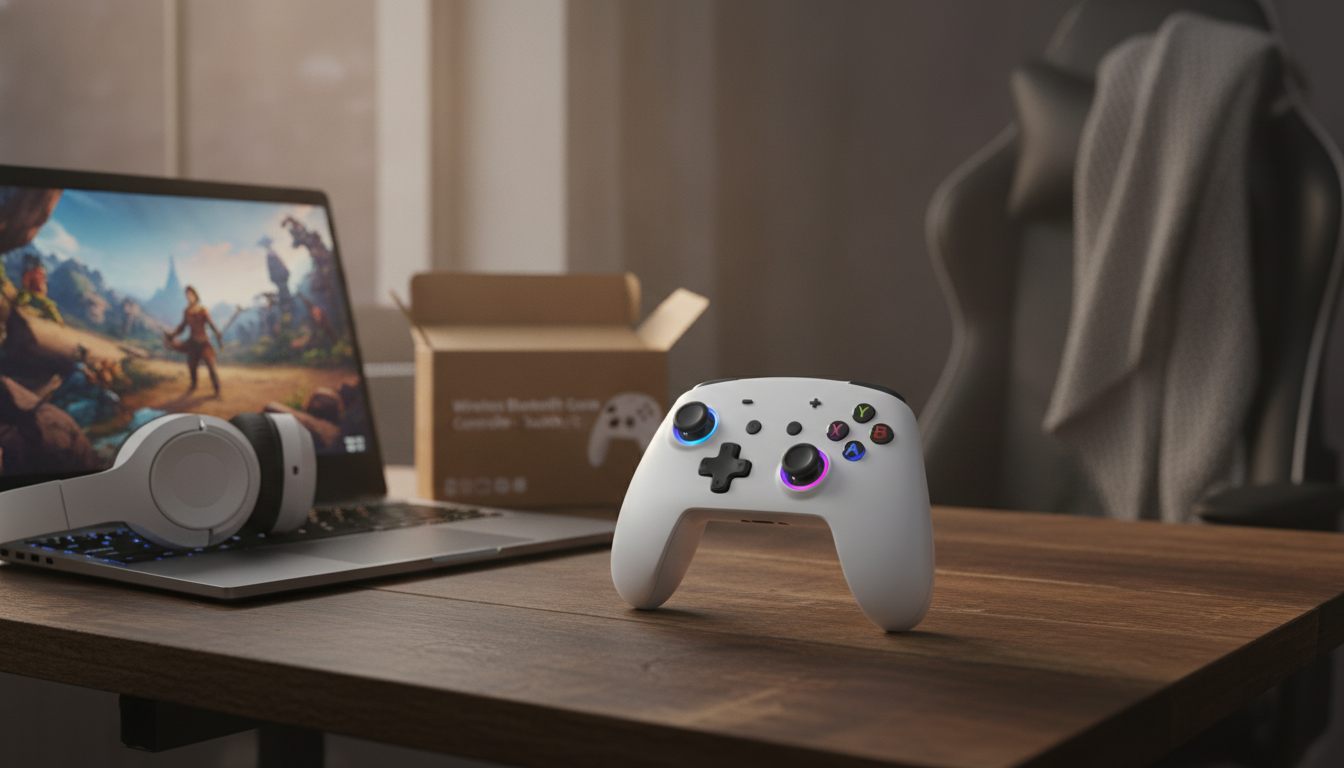
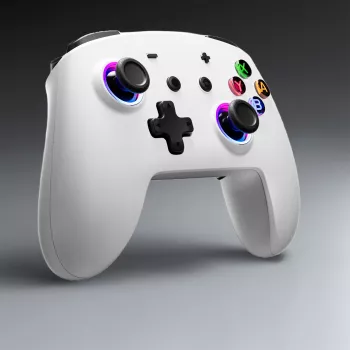
A wireless controller can make console and PC sessions feel more comfortable by reducing cable clutter and improving freedom of movement. This Switch/PC-compatible Bluetooth controller adds LED backlighting for visibility and style, while focusing on responsive controls and easy pairing for everyday play.
This type of controller is designed to feel familiar in the hands while removing the “tether” of a wired setup. Whether it’s a quick round after work or a longer weekend session, wireless play is about keeping your setup flexible without sacrificing control.
Compatibility is usually straightforward on Switch and can be flexible on PC depending on the game and how it expects controller input. On Switch, pairing is typically handled through the console’s controller menu. On Windows PCs, Bluetooth pairing is simple, but individual game support can vary based on whether a title expects a specific controller standard.
| Detail | What to Expect |
|---|---|
| Connection | Bluetooth wireless (range depends on environment and interference) |
| Platforms | Switch and PC (game/OS support may vary) |
| Lighting | LED backlit design for visibility and aesthetics |
| Use cases | Solo play, co-op, travel, secondary controller for guests |
| Price | $54.82 USD |
Wireless performance is a mix of controller design and the environment around it. Bluetooth is convenient, but it’s also sensitive to interference—especially in crowded rooms with multiple devices competing for signal. Pairing usually takes less than a minute once you know the button sequence and where to look in your device list.
For a reliable baseline, keep the controller within a reasonable range and avoid placing a USB 3.0 hub right next to a Bluetooth adapter. If Windows updates or driver changes cause odd behavior, removing the controller from the Bluetooth list and pairing again often clears out old profiles.
LED backlighting isn’t just cosmetic. In a darker room, lit buttons can reduce mis-presses, especially when swapping between controllers during couch co-op. That said, lighting typically draws extra power, so it’s worth treating it as a feature you can tune for the moment.
A good habit is to keep lighting brighter for short sessions and dimmer for longer play. If the controller has multiple modes, a simple static setting is often easier on the eyes than rapid cycling patterns.
Comfort shows up in small ways: how securely the grips sit in your palms, whether the shell texture helps prevent slipping, and whether the button layout allows quick reactions without hand strain. For genres like shooters, the stick feel can be the difference between “close enough” and truly dialed-in aiming.
For official troubleshooting steps and pairing guidance, Nintendo’s support site is a solid reference: Nintendo Support: Pairing and controller help for Nintendo Switch.
For Windows pairing steps, Microsoft’s guide can help confirm the right menus and flow: Microsoft Support: Connect Bluetooth devices in Windows. For a broader overview of how Bluetooth works (and why interference matters), see: Bluetooth SIG: Bluetooth technology overview.
Yes, it can usually be paired to both, but you’ll need to follow the pairing steps separately on each platform. When switching devices, removing and re-pairing can help if the controller tries to reconnect to the last device or shows up with the wrong profile on PC.
Bluetooth latency is often caused by interference, distance, or a weak Bluetooth adapter. Updating Bluetooth drivers, moving closer, changing USB ports (especially away from USB 3.0 hubs), and minimizing nearby wireless traffic can reduce delay.
Yes, lighting typically draws additional power. Dimming or turning off the LEDs usually extends play time, and keeping the controller topped up helps maintain consistent performance.


Leave a comment