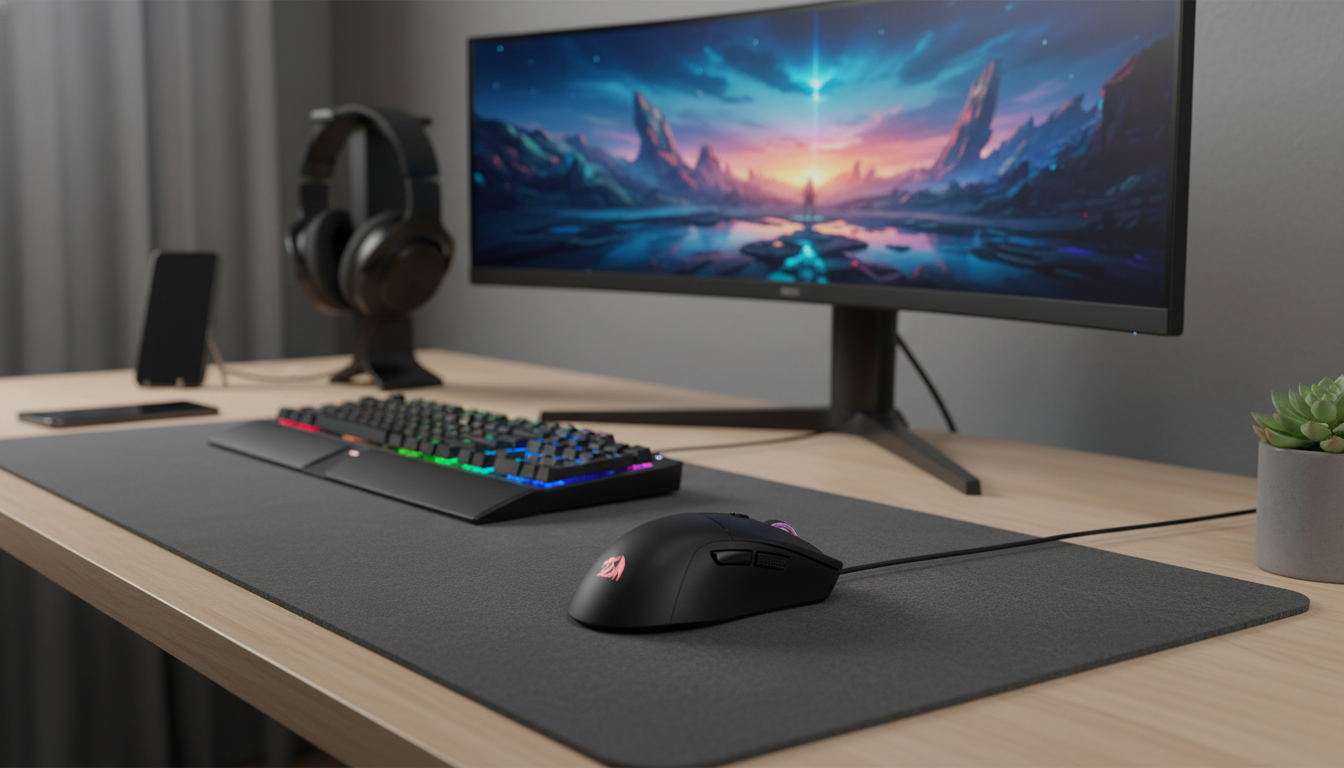
A fast, consistent wired connection, a wide DPI range, a shape that supports long sessions, and extra buttons for commands are the core ingredients of a dependable gaming mouse. This guide breaks down what those features change in real use—aiming, comfort, and control—and how to set them up for different games and hand sizes.
If you want a simple plug-and-play upgrade with plenty of sensitivity headroom and practical button placement, see the Wired Gaming Mouse 10000 DPI Ergonomic Ultra Lightweight with 6 Buttons.
DPI (dots per inch) describes how far the cursor moves relative to how far the mouse physically moves. Higher DPI usually means the pointer travels farther with the same hand motion. A 10000 DPI ceiling isn’t about playing at max all the time—it’s about having room to fine-tune.
High maximum DPI becomes genuinely useful on high-resolution displays, multi-monitor setups, and for anyone who likes very specific “steps” between sensitivity levels. Many competitive players still choose moderate DPI (often 400–1600) and then dial in in-game sensitivity, because it tends to feel more controllable for micro-adjustments. If you want a quick refresher on what DPI means and how it relates to feel, SteelSeries has a clear explainer: What Is DPI (Mouse Sensitivity)?.
| Use case | Typical DPI range | Why it works |
|---|---|---|
| Tactical FPS (precise aim) | 400–800 | More controlled micro-movements and steadier tracking |
| Fast FPS / arena shooters | 800–1600 | Balances speed and precision for flicks and tracking |
| MOBA / RTS | 800–2000 | Quick cursor travel for map movement and targeting |
| High-resolution desktop / multi-monitor | 1600–3200+ | Less arm movement to cover large screen space |
Ergonomics is less about one “perfect” shape and more about supporting common grips—palm, claw, and fingertip—while keeping your wrist and fingers in a more neutral posture. A supportive shell can reduce the tendency to squeeze the mouse tightly (the classic “death grip”), which can matter a lot in long sessions full of repeated clicks.
For day-to-day comfort, pay attention to hump height (palm support), side contour (thumb and ring finger placement), and button reach (so you aren’t stretching or curling awkwardly). If you’re refining your workstation setup for healthier posture, OSHA’s guidance is a good reference point: OSHA Computer Workstations eTool (Ergonomics).
Lower mouse weight can make a bigger difference than expected, especially in tracking-heavy games where you’re constantly starting, stopping, and correcting. With less mass to move, it’s easier to make small mid-spray adjustments and to recover after a flick that overshoots.
A lighter mouse can also reduce fatigue because you need less force to change direction—helpful for low-sensitivity playstyles that use more forearm movement. The main trade-off is preference: some players like a bit of heft for steadiness. In practice, “control” comes from the mix of weight, mouse skates, mousepad surface, and settings. If your glide feels too fast, you can often solve it by lowering DPI/in-game sensitivity slightly or using a more controlled pad rather than switching mice.
Extra buttons help keep your left hand anchored on movement keys while still giving you instant access to frequent actions. That speed-up is subtle, but it adds up—especially in games that punish missed timing (utility throws, ability cancels, weapon swaps, and comms).
They can be, because a better-fitting shape often reduces grip tension and fatigue during long sessions. The value depends on hand size, grip style, and posture, so it’s smart to also adjust desk height and sensitivity to keep your wrist in a neutral position.





Leave a comment