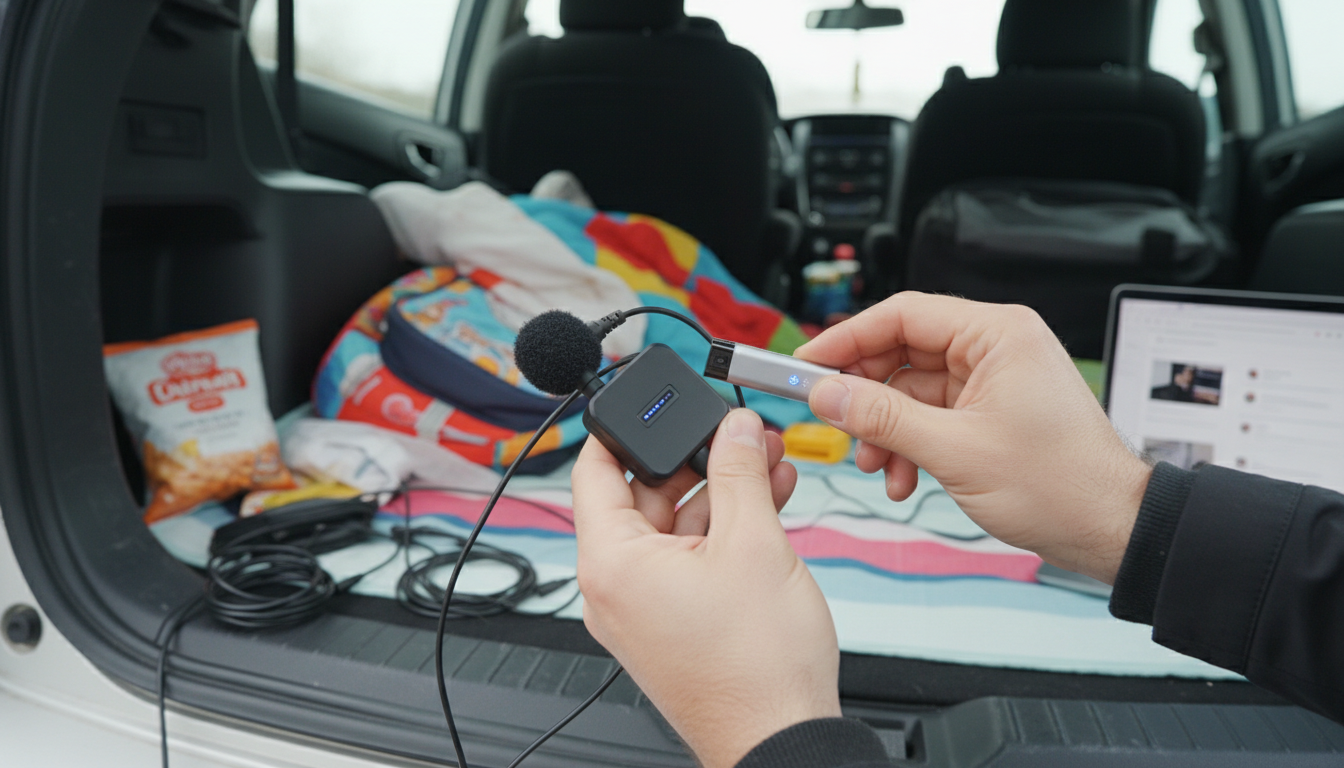
Most wireless microphones don’t connect to Bluetooth the way headphones or a phone speaker do. Instead, they use their own dedicated wireless link (often UHF) between the handheld mic and a small receiver. The receiver then connects to your speaker, mixer, or karaoke machine using an audio cable. Bluetooth may still be involved—but typically on the speaker side, not between the mic and the speaker.
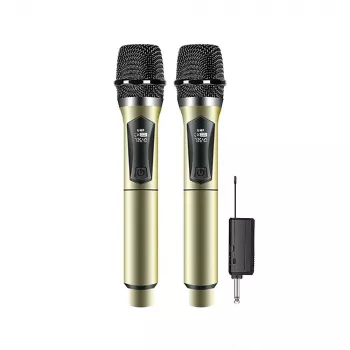
1) Look for a receiver. If your microphone came with a receiver box (or a plug-in receiver), it’s almost certainly UHF/2.4GHz wireless, not Bluetooth.
2) Check the microphone’s specs. If it explicitly says “Bluetooth microphone” or “Bluetooth transmitter,” then Bluetooth pairing may be possible. If it says “UHF wireless,” it pairs to its receiver, not Bluetooth.
1) Power on the mic and receiver. Many sets auto-pair; others require matching the same channel/frequency on both.
2) Connect the receiver to audio input. Use the appropriate output on the receiver (often 1/4″ or 3.5mm) into your speaker/mixer/amp’s MIC IN or AUX IN.
3) Use Bluetooth on the speaker only (optional). If your speaker has Bluetooth, you can stream music from your phone to the speaker via Bluetooth while the microphone audio comes through the receiver input at the same time (if the speaker supports mixed inputs).
For a practical walkthrough of a rechargeable UHF wireless microphone set and receiver connections, see this guide.
1) Put the mic in pairing mode. This is usually a long-press on a Bluetooth/Power button until a light flashes.
2) Put the target device in pairing mode. On a phone/tablet, open Bluetooth settings and select the mic when it appears. On a Bluetooth speaker, follow the speaker’s pairing instructions.
3) Test audio and adjust gain. Bluetooth mics can have latency; for karaoke, a wired or UHF receiver connection is often smoother.
Many wireless mics aren’t Bluetooth devices—they’re designed to connect only to their included receiver. In that case, plug the receiver into the speaker’s audio input instead of trying to pair over Bluetooth.
Most wireless microphones don’t connect to Bluetooth the way headphones or a phone speaker do. Instead, they use their own dedicated wireless link (often UHF) between the handheld mic and a small receiver. The receiver then connects to your speaker, mixer, or karaoke machine using an audio cable. Bluetooth may still be involved—but typically on the speaker side, not between the mic and the speaker.
1) Look for a receiver. If your microphone came with a receiver box (or a plug-in receiver), it’s almost certainly UHF/2.4GHz wireless, not Bluetooth.
2) Check the microphone’s specs. If it explicitly says “Bluetooth microphone” or “Bluetooth transmitter,” then Bluetooth pairing may be possible. If it says “UHF wireless,” it pairs to its receiver, not Bluetooth.
1) Power on the mic and receiver. Many sets auto-pair; others require matching the same channel/frequency on both.
2) Connect the receiver to audio input. Use the appropriate output on the receiver (often 1/4″ or 3.5mm) into your speaker/mixer/amp’s MIC IN or AUX IN.
3) Use Bluetooth on the speaker only (optional). If your speaker has Bluetooth, you can stream music from your phone to the speaker via Bluetooth while the microphone audio comes through the receiver input at the same time (if the speaker supports mixed inputs).
For a practical walkthrough of a rechargeable UHF wireless microphone set and receiver connections, see this guide.
1) Put the mic in pairing mode. This is usually a long-press on a Bluetooth/Power button until a light flashes.
2) Put the target device in pairing mode. On a phone/tablet, open Bluetooth settings and select the mic when it appears. On a Bluetooth speaker, follow the speaker’s pairing instructions.
3) Test audio and adjust gain. Bluetooth mics can have latency; for karaoke, a wired or UHF receiver connection is often smoother.
Many wireless mics aren’t Bluetooth devices—they’re designed to connect only to their included receiver. In that case, plug the receiver into the speaker’s audio input instead of trying to pair over Bluetooth.


Leave a comment