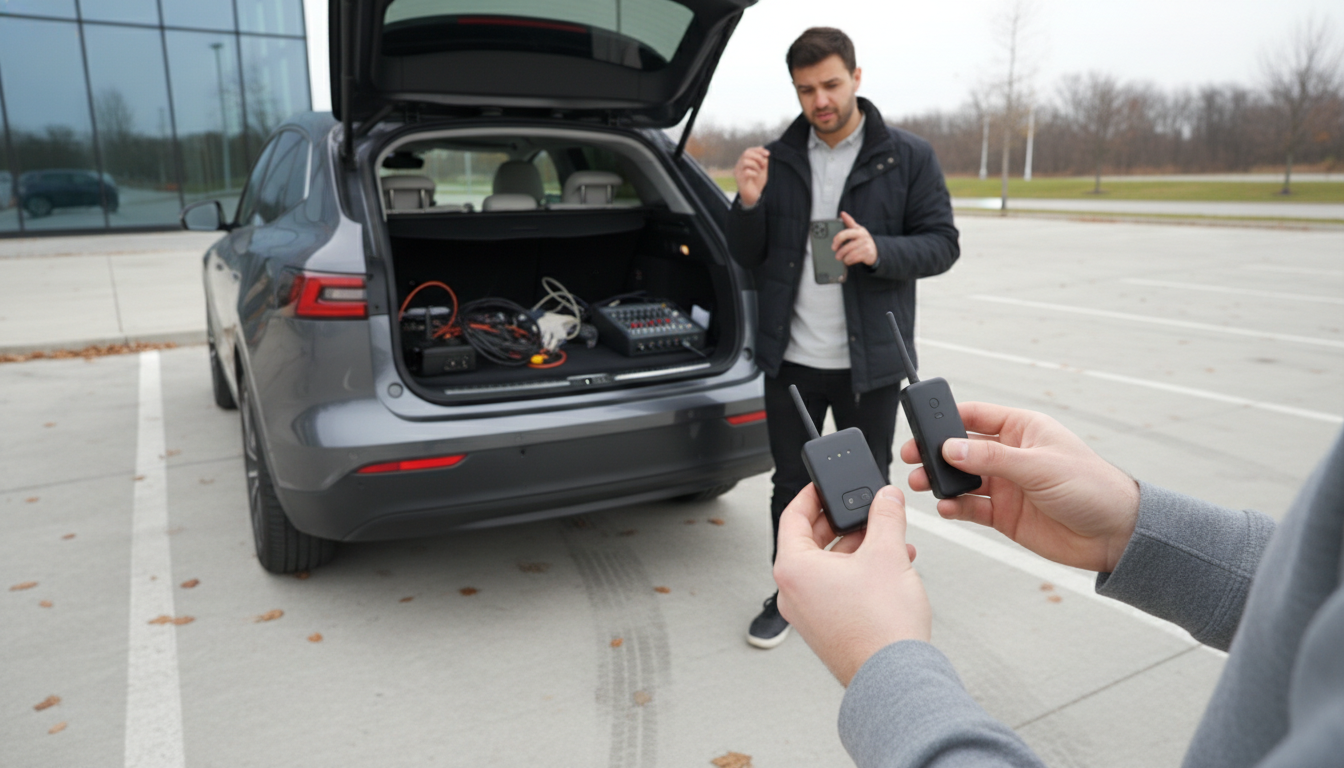
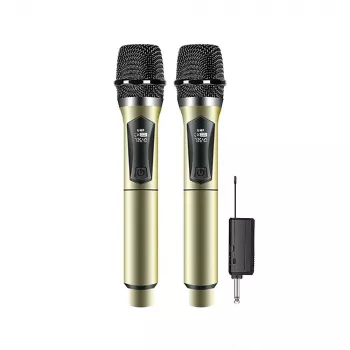
If a wireless microphone won’t power on, connect, or produce sound, the fix is usually a quick setup check: charge it, pair it correctly to the receiver, and confirm your audio output settings. Most UHF handheld systems work reliably once power, frequency/channel, and volume routing are aligned.
Fully charge the handheld microphone and the receiver (or install fresh batteries if your model uses them). Turn on the receiver first, then the microphone. If either device has a low-battery indicator or blinking power light, recharge before troubleshooting anything else.
Plug the receiver’s output into the correct port on your speaker, amplifier, mixer, or karaoke machine. If your setup has both MIC and LINE/AUX inputs, use the one recommended for your receiver’s output type. Then raise the volume on the speaker/amp and the receiver (if it has its own volume control).
UHF systems require the microphone and receiver to be on the same channel or frequency group. Use the receiver’s display/buttons (or the mic’s channel switch) to select a matching channel. Once matched, the receiver typically shows an RF/AF indicator, or a stable connection light.
Unmute the microphone, disable any “MIC priority” or “music only” modes on karaoke units, and turn up the mic volume separately from the master volume. If your speaker has multiple inputs, confirm you’re listening to the input where the receiver is connected.
Move the receiver away from Wi‑Fi routers, LED power supplies, and dense cables; keep a clear line-of-sight when possible. Try another channel if your system supports it, and keep the receiver’s antenna(s) fully extended and oriented correctly.
For model-specific button steps, charging details, and connection examples, follow the complete guide here: Rechargeable UHF Wireless Microphone with Receiver Guide.
This usually means the receiver is plugged into the wrong input or the volume/gain is down somewhere in the chain. Check the receiver output cable, select the correct input on your speaker/mixer, unmute the mic, and raise both mic and master volumes.





Leave a comment